

Startup Manager
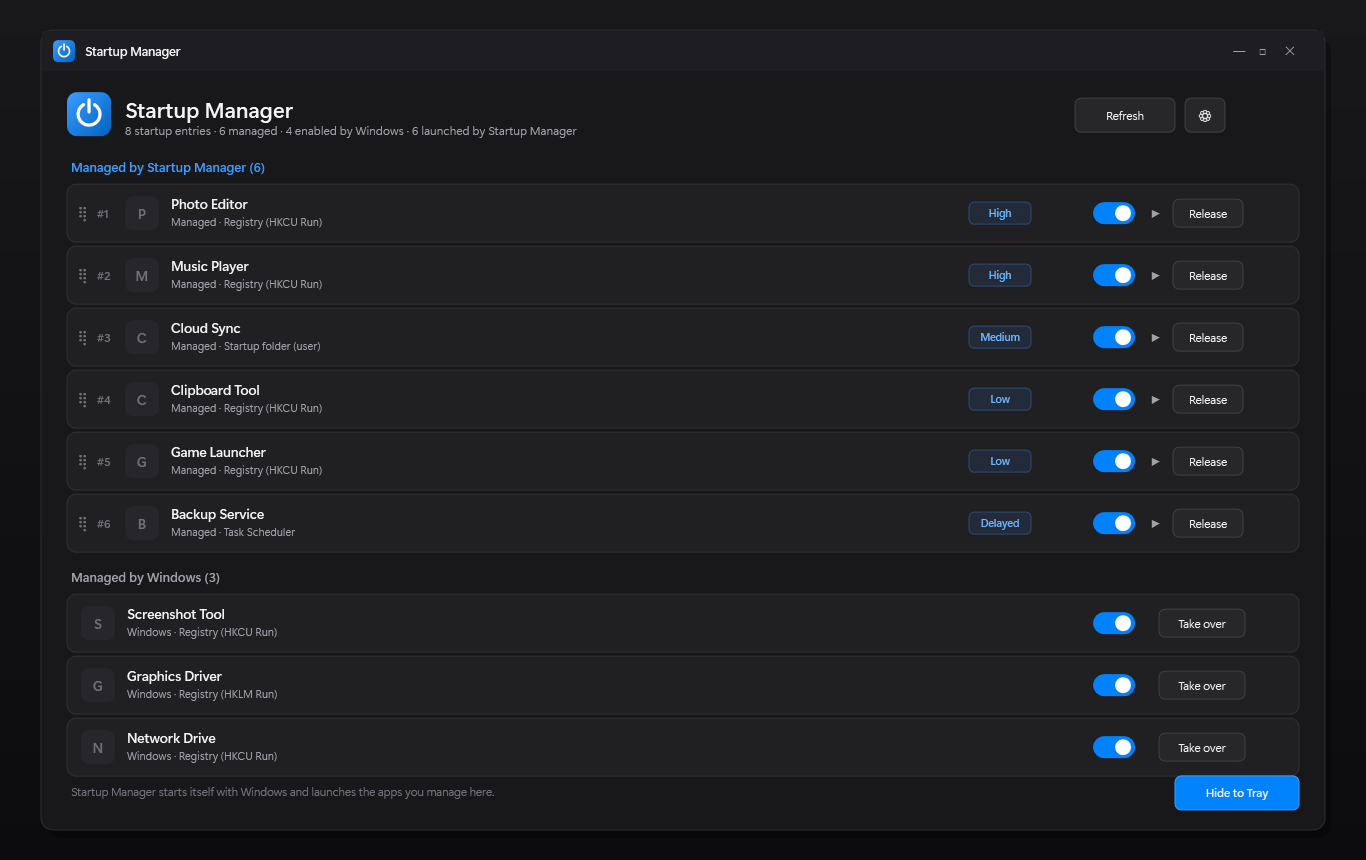
Startup Manager is a free Windows tray utility that puts every autostart entry in one place. See what starts with your session, take over the apps you want to control and launch them in the priority order you choose.
100% free · No ads · No account required · Zero telemetry
Why use Startup Manager instead of Task Manager
- Windows hides autostart entries across the registry Run keys, the Startup folders, Task Scheduler and packaged apps; Startup Manager merges them into a single, readable list.
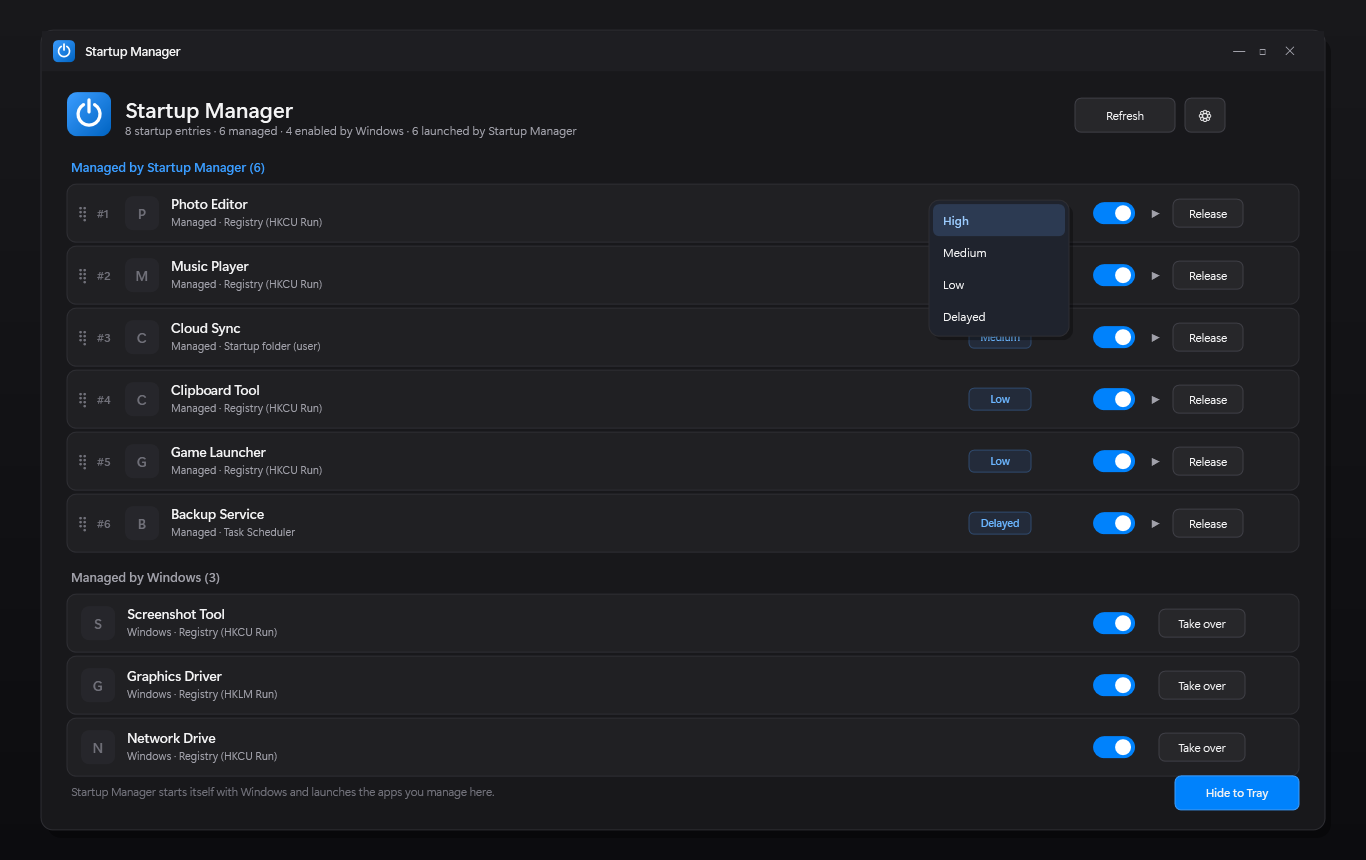
- You can order startup apps by priority — High, Medium, Low and Delayed — something Windows cannot do on its own.
- Everything is reversible: taking over an entry backs it up first, and Release restores the exact original location.
Features
- Unified list of registry Run and RunOnce keys (32- and 64-bit), per-user and all-users Startup folders, Task Scheduler logon tasks and packaged-app startup tasks
- Enable or disable any entry without deleting it, with a reversible backup of its original location
- Take over an app so Startup Manager launches it at sign-in; Release restores the original entry exactly
- High, Medium, Low and Delayed priority groups with per-group delays (0, 0, 0 and 30 seconds by default)
- Apps in the same priority start in parallel, so each group launches together instead of one by one
- Drag & drop reordering across priorities, with a translucent preview and a line marking the drop position
- Launch button on every managed app to start it immediately, without waiting for the next sign-in
- Detects apps that add themselves to startup and offers to manage them from a tray notification
- Reclaims native startup entries recreated by an app you already manage
- Settings for the per-priority delays, duplicate reclamation and take-over confirmation
- Self-start registration with a watchdog that recreates the entry and warns you if Windows disables it
- Single-instance tray app with close-to-tray, dark mode matching the system theme and illustrated built-in help
Installation
Install from Microsoft Store
- Download Startup Manager from the Microsoft Store
- Click Install on the Store page
- The app starts hidden in the system tray; click the tray icon to open it
- Take over the apps you want to control and set their priorities
Requires Windows 10 version 19041 (2004) or later, or Windows 11. The .NET 10 runtime is bundled with the Store package.
Settings
| Setting | Description |
|---|---|
| High / Medium / Low / Delayed delays | Seconds to wait before starting each priority group (0, 0, 0 and 30 by default) |
| Automatic duplicate reclamation | Silently disable native startup entries recreated by apps Startup Manager already launches |
| Ask when taking over | Show the confirmation dialog before an app is removed from Windows startup |
| Start with Windows | Register Startup Manager at sign-in so it can launch your managed apps, with a watchdog that warns if Windows disables it |
Requirements
- Windows 10 build 19041 (2004) or later, or Windows 11
- x64 desktop (the Store package is a full-trust MSIX app)
- .NET 10 runtime (bundled automatically with the Microsoft Store package)
How It Works
- Discovers every autostart entry across the registry Run keys, the Startup folders, Task Scheduler and packaged-app startup tasks, then merges them into one list.
- Taking over backs up the original entry and removes it from Windows startup, so Startup Manager becomes its launcher; Release restores it unchanged.
- At sign-in, enabled managed apps launch in priority groups with their own delays, in parallel inside each group and skipping apps that are already running.
Frequently asked questions about Windows startup apps
How do I stop an app from starting with Windows?
Open Startup Manager from the tray and switch the entry off. Nothing is deleted: registry values are backed up, Startup-folder shortcuts are moved aside, and scheduled tasks or packaged apps keep their native disabled state, so you can re-enable them at any time.
What is a startup priority and why does it matter?
Windows starts autostart apps roughly in the order they were registered, with no way to control it. Startup Manager takes over the apps you choose and launches them in priority groups (High, Medium, Low, then Delayed), so your essential helpers are ready before the heavy ones.
Does Startup Manager delete my startup entries?
No. Disabling or taking over an entry backs it up first. Releasing a managed app restores its original registry value, Startup-folder item, scheduled task or packaged-app state exactly as it was.
Which startup locations does it detect?
Registry Run and RunOnce keys for the current user and the machine (including the 32-bit views), the per-user and all-users Startup folders, Task Scheduler tasks with logon triggers, and packaged-app (MSIX/UWP) startup tasks.
Will it tell me when another app adds itself to startup?
Yes. Startup Manager watches the autostart locations and raises a tray notification when a new entry appears, so you can decide whether to manage it or leave it alone.
Is Startup Manager free and private?
Yes. It is 100% free, with no ads, no account and no telemetry. It runs entirely offline and stores its settings under %LOCALAPPDATA%\StartupManager.