

BetterPortableApps
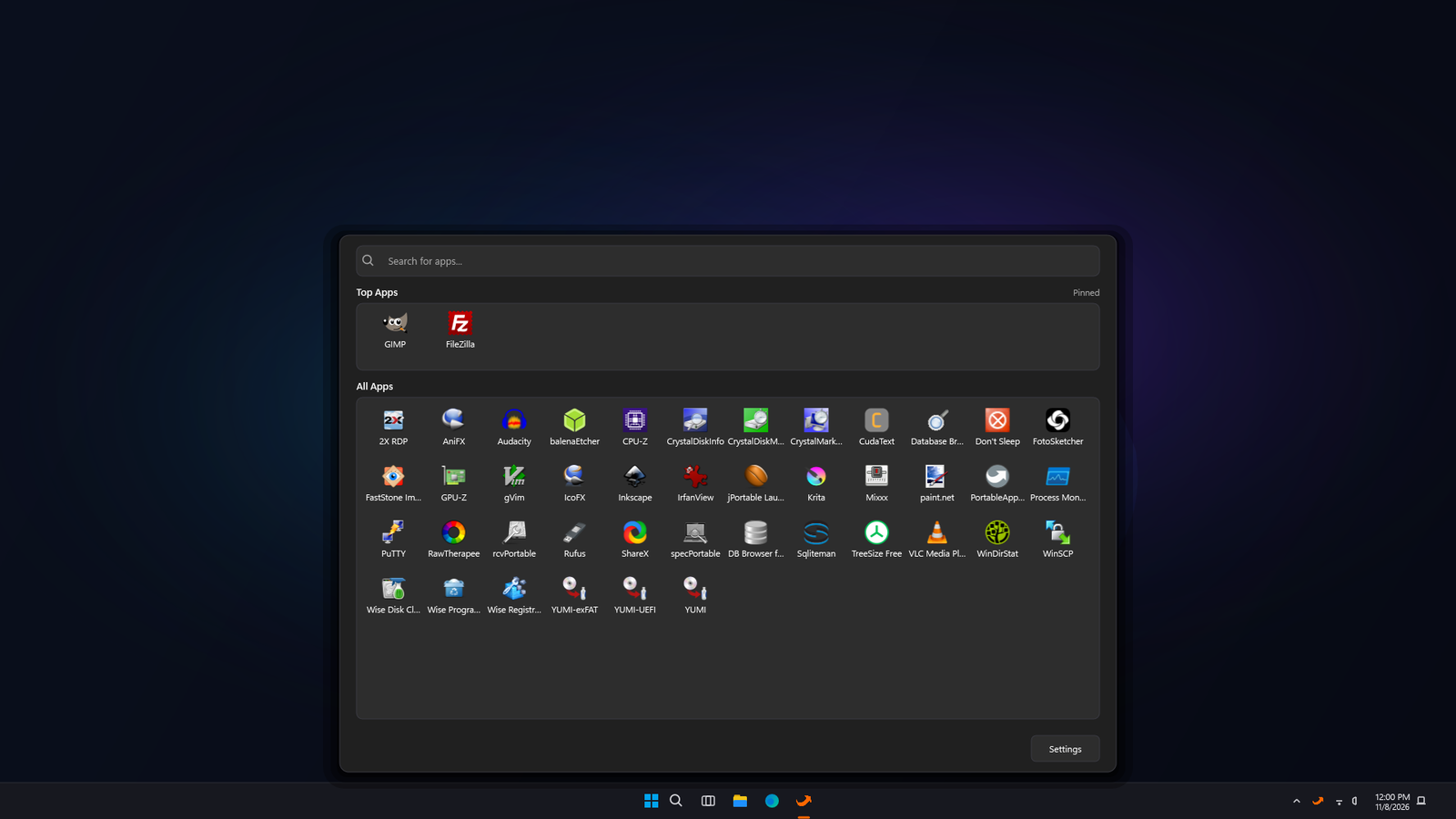
A minimal Windows system tray utility and Start menu replacement for managing portable applications, built with C# and .NET 10. Access all your portable tools with real-time search, category grouping, and global shortcuts.
100% free · No ads · No account required · Zero telemetry
The portable apps launcher that feels like Windows.
BetterPortableApps is a free, lightweight PortableApps.com alternative for Windows 11 and Windows 10. Point it at your portable apps folder and get a Start-menu style launcher with instant search, categories and a tray icon — no ads, no telemetry, no account.
Why BetterPortableApps?
- Clean, native Windows 11 look: replaces bulky third-party launchers with a fast, modern acrylic window that follows your system theme and accent color.
- Instant access from anywhere: toggle the launcher with a customizable global keyboard shortcut, from the system tray, or automatically alongside the native Windows Start Menu.
- Tailored to your workflow: choose between Flat, Grouped, List, or Tree layouts, dock to any screen position, and pin your most-used utilities.
Looking for a portable apps alternative?
Keep your apps. Change the shell around them.
A portable apps launcher should get out of the way. If you already keep your applications in a PortableApps folder, you do not necessarily need a full management suite, an app store, a backup center and a settings tree between you and your programs. Sometimes you just want to press a shortcut, type two letters and open the app.
BetterPortableApps is built around that idea. It is a focused PortableApps.com Platform alternative that reads the PortableApps folder you already have and presents it as a modern, searchable launcher. It does not move your files, rewrite your app data or lock you into a new folder structure.
What stays the same
- Your existing portable applications and their appinfo.ini metadata.
- PortableApps.com format icons, names, versions and categories.
- The official PortableApps updater, which you can still launch from the tray menu.
What changes
- A Windows 11 Start-menu style window instead of a classic cascading menu.
- Instant search, pinned favorites and four ways to browse your apps.
- A configurable global shortcut (Ctrl+Alt+P by default) and an optional Start Menu hand-off.
Essential Features
Everything you need to launch and organize your portable tools with speed and focus.
Windows 11 Start Menu Interface
Borderless acrylic launcher window with live search filtering, rounded corners, drop shadow and smooth entrance animation.
Instant Search as You Type
Search through all your portable applications in real time as you type, and launch your selected app with a single click or Enter.
System Tray Integration
Lives quietly in your Windows notification area with a fast context menu, persistent Shell GUID and close-to-tray architecture.
Top Apps & Pinned Favorites
Quick access section showing either your pinned favorite apps or your most recently opened apps, configurable in Settings.
Four Flexible Layouts
Browse your portable applications the way you prefer: Flat grid, Grouped by category, Compact list or Hierarchical tree view.
Adaptive Multi-Column Layout
List and Tree view rows dynamically flow into multiple columns on wider displays to maximize space without horizontal scrolling.
Global Keyboard Shortcut
Toggle the launcher window from anywhere with a configurable shortcut (default: Ctrl+Alt+P). Supports Win key combinations or Win key alone.
Windows Start Menu Interception
Optional accessibility hook that seamlessly synchronizes opening and closing with the native Windows Start Menu for a unified feel.
Automatic App Discovery
Automatically scans your configured PortableApps directory and reads each app's standard appinfo.ini file for icons, names and categories.
Native Light & Dark Theming
Automatically adapts in real time to Windows light and dark themes and tints buttons and highlights with your current Windows accent color.
PortableApps Updater
Launch the PortableApps.com updater on demand from the tray context menu or automatically once daily at startup with zero manual hassle.
100% Free & Self-Contained
Freeware with no ads, no telemetry, no account required and zero background CPU usage.
BetterPortableApps vs. the PortableApps.com Platform
Same portable apps folder, two very different launcher experiences.
| Setting | Description | PortableApps.com Platform |
|---|---|---|
| PortableApps Folder | Custom path to your existing PortableApps folder | Creates and manages its own PortableApps folder |
| Window Position | Nine dock anchors or free Custom placement | Classic cascading menu |
| Top List Mode | Pinned or Most recent apps, configurable count | Menu categories |
| App List Display Mode | Flat, Grouped, List, Tree layouts | Menu categories |
| Global Shortcut & Start Interception | Global hotkey + optional Start Menu interception | Separate platform menu |
| Start with Windows | Per-user Run key, no admin rights | Installer-based setup |
The two can live side by side: BetterPortableApps only reads your PortableApps folder, so you can keep the Platform for updates and backups while using a lighter launcher day to day.
Best portable apps alternatives in 2026
There is no single best launcher — only the one that fits how you work.
BetterPortableApps
Best for a Windows 11 style launcher with instant search, a tray icon and no platform overhead.
Why switch to BetterPortableApps →PortableApps.com Platform
Best if you want the original suite with its app directory, updater and backup features in one place.
Read the full comparison →SyMenu, LiberKey, CodySafe
Best if you prefer configurable menus, USB-drive suites or a dedicated portable desktop.
See all seven alternatives →The Windows Start menu
Best if your apps are installed normally and you do not need a portable folder or a separate launcher.
Portable launcher vs. Start menu →Portable apps launcher: what it is and how to choose one.
A portable apps launcher turns a folder full of portable programs into something you can search, browse and open in seconds. Here is how they work, what to compare, and where a focused launcher beats a full platform.
What is a portable apps launcher?
A portable apps launcher is a small Windows program whose job is to list the portable applications you have and start the one you choose. It is not the apps themselves. Each portable app still lives in its own folder, keeps its own settings and runs its own executable. The launcher is the front door.
That distinction matters when you are comparing tools. Two launchers can show the same applications and feel completely different, because the interesting part is not the app list — it is how quickly you can get from "I want Firefox" to a running window.
How portable apps launchers find your apps
Most launchers work from a folder. For PortableApps.com applications, the folder layout is predictable: each app has a launcher executable at its root and metadata under App\AppInfo\appinfo.ini. That file supplies the display name, version, category, icon and the executable to run.
A well-behaved launcher reads that metadata instead of asking you to maintain a second list. You point it at the folder once, and it discovers new apps when you add them. It also means your existing collection keeps working: switching launchers does not require reinstalling or converting anything, and the apps' Data folders stay untouched.
What to look for in a portable apps launcher
Feature lists can be long, but only a few things change your daily experience:
- Instant search. Type-ahead filtering is the single biggest time saver once you have more than a dozen apps.
- Keyboard flow. Arrow keys, Enter and a global shortcut mean you never touch the mouse.
- Useful layouts. A flat grid for speed, categories when you want structure, and a list when names matter more than icons.
- Native theming. Light and dark mode plus your Windows accent color should be automatic, not a theme pack.
- Tray behavior. The launcher should start hidden, stay quiet and appear only when summoned.
- Respect for your folder. It should read your apps, not reorganize them.
- No surprise extras. Ads, accounts or telemetry have no place in a launcher.
Portable apps launcher vs. the Windows Start menu
They solve different problems, and you can use both at once.
| Aspect | Portable apps launcher | Windows Start menu |
|---|---|---|
| What it lists | Apps inside your portable folder | Programs installed for Windows |
| Where settings live | With each portable app's Data folder | In the user profile and registry |
| Moving to another PC | Copy the portable folder | Reinstall applications |
| Search | Filters your portable apps as you type | Searches installed apps, settings and files |
| Can they coexist? | Yes — optionally opens with the Start menu | Yes |
How BetterPortableApps approaches it
BetterPortableApps is a focused portable apps launcher for Windows 10 and 11. It scans your configured PortableApps folder, reads each app's appinfo.ini, and presents the result in a borderless acrylic window inspired by the Windows 11 Start menu.
- Instant search across app names and IDs, with Enter to launch.
- Four layouts: flat grid, grouped by category, compact list and hierarchical tree.
- A Top Apps row that shows your pinned favorites or most recently opened apps.
- A configurable global shortcut, defaulting to Ctrl+Alt+P.
- Optional Start Menu interception for a unified open-and-close feel.
- Tray-first behavior: close the window and the launcher stays out of the way.
- Light and dark themes that follow Windows, tinted with your accent color.
Set up your launcher in three steps
- Download BetterPortableApps from the Microsoft Store
- Click Install on the Store page
- The app starts quietly in the system tray notification area
- Click the tray icon or press Ctrl+Alt+P to open the launcher and scan your portable apps
Requires Windows 10 version 19041 (2004) or later, or Windows 11. The .NET 10 runtime is bundled automatically with the Microsoft Store package.
Tip: if your apps live on a USB drive, set the launcher to that drive's PortableApps folder. The apps stay portable; only the launcher itself is installed.
Frequently Asked Questions
What is BetterPortableApps?
BetterPortableApps is a lightweight, modern system tray utility and Start menu launcher for managing portable applications on Windows 10 and 11. It provides fast real-time search, category grouping, and custom positioning in an acrylic design.
Does BetterPortableApps require administrator rights?
No. BetterPortableApps runs fully at user execution level (asInvoker). Startup registration and configuration are stored locally under user directories without touching protected system areas.
How does it detect portable applications?
It scans your configured PortableApps directory and reads each app's standard appinfo.ini file to obtain its name, category, icon, version, and main executable.
Can I use it alongside the native Windows Start Menu?
Yes! You can toggle BetterPortableApps with its global hotkey (Ctrl+Alt+P) or enable Start Menu Interception in Settings so the launcher automatically appears and hides with the Windows Start Menu.
Is BetterPortableApps a PortableApps.com alternative?
Yes. BetterPortableApps is a launcher alternative to the PortableApps.com Platform. It reads the same PortableApps folder and appinfo.ini metadata, but presents your apps in a modern Windows 11 Start-menu style window instead of a full platform with its own store, backup and management screens.
Can I use BetterPortableApps with my existing PortableApps folder?
Yes. Point the app at your existing PortableApps folder in Settings. It scans each app's App\AppInfo\appinfo.ini file for the name, icon, version and category, and launches the same executables you already use.
Do I need the PortableApps.com Platform installed?
No. BetterPortableApps only needs your portable applications in a folder. The PortableApps.com Platform is optional, and the built-in updater actions still use the official PortableAppsUpdater.exe when it is present.
Can I install BetterPortableApps with winget?
Yes. Run winget install 9NP57DT7XSPD in PowerShell or Command Prompt. The first run may ask you to accept the Microsoft Store source terms, and it installs the same package as the Microsoft Store link.
Key Settings
| Setting | Description |
|---|---|
| PortableApps Folder | Custom path to your portable applications directory (defaults to the local PortableApps folder) |
| Window Position | Nine screen dock anchor points or free Custom placement with drag-and-drop repositioning |
| Top List Mode | Show either Pinned apps (with custom drag ordering) or Most Recent apps with configurable count |
| App List Display Mode | Four visual layouts: Flat grid, Grouped by category, List, or expandable Tree view |
| Global Shortcut & Start Interception | Configure the global hotkey (defaults to Ctrl+Alt+P) or sync launcher visibility with the Windows Start Menu |
| Start with Windows | Register per-user autostart in the Windows Run registry key without requiring administrator privileges |
Installation & Setup
Install from Microsoft Store
- Download BetterPortableApps from the Microsoft Store
- Click Install on the Store page
- The app starts quietly in the system tray notification area
- Click the tray icon or press Ctrl+Alt+P to open the launcher and scan your portable apps
Requires Windows 10 version 19041 (2004) or later, or Windows 11. The .NET 10 runtime is bundled automatically with the Microsoft Store package.
System Requirements
- Windows 10 (version 19041 / 2004 or later) or Windows 11
- .NET 10 Desktop Runtime (bundled automatically with the Microsoft Store package)
- Standard user account (no administrator privileges needed for installation or running)