

Way Better Notifications
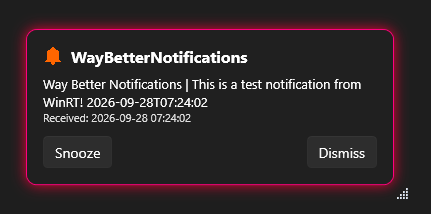
Way Better Notifications is a free Windows 11 tray app that acts as a complete notification replacement. It captures every notification Windows shows, removes native toasts so nothing lingers, and displays custom popups you can snooze, drag anywhere, dismiss, or interact with native app actions, with custom Do Not Disturb schedules, skip rules, and full history.
100% free · No ads · No account required · Zero telemetry
Why it is better than the default Windows 11 notification system
- Every notification becomes a draggable, always-on-top popup with direct action buttons instead of vanishing into the Notification Center.
- Snooze any alert with custom intervals or schedules until you are ready, and suppress noise with custom quiet hour intervals and skip rules.
- Full notification history and active notifications list keep everything you missed, with double-click to reopen any notification as a popup.
Features
- Captures Windows 11 notifications and displays them as custom popups, automatically removing native toasts so nothing lingers
- Custom rounded, elevated popups with entrance animations, and optional glowing accent border (system accent or custom color)
- Interactive action buttons from source notifications (Reply, Delete, Mark as read) with icons and auto-widening layout
- Drag popups anywhere on screen by holding anywhere on the card
- Snooze or dismiss from the popup, the active list, or the history with custom time units (seconds, minutes, hours, days, weeks)
- Configurable popup close button: close (keeps notification active), dismiss, or snooze for a custom duration
- Skip rules by application or title with regular expression support to suppress unwanted alerts without losing history
- Open the source application by double-clicking a notification (restores and focuses existing window)
- Active Notifications window with select-all, dismiss-selected, snooze-selected, and natural time countdowns (days, hours, minutes)
- Notification History with paging, per-item status, right-click/Ctrl+C copy, and double-click to reopen any notification as a popup
- Do Not Disturb (DND) aware: detects Windows quiet hours, custom scheduled intervals (e.g. 23-7), and configurable DND notification handling
- Multiple monitor support: choose working screen, primary, follow mouse cursor, or a specific detected monitor, with custom anchor placement
- Startup sweep: reads all pending notifications from Windows Action Center on launch and transforms them into custom popups
- Multi-language UI: English, Catalan, Spanish, French, Italian, and German with instant live switching
- Remembers window geometry (size, position, monitor) for all application windows across multi-monitor setups
- 100% free, runs completely locally with zero telemetry, zero ads, no account required, storing data in local registry and SQLite
Installation
Install from Microsoft Store
- Open the listing on the Microsoft Store
- Click Install on the Store listing
- The app starts in the system tray
- Grant notification access when Windows asks (Settings → Privacy & security → Notifications)
On first launch, grant notification access in Settings → Privacy & security → Notifications so the app can read incoming notifications.
Install via Windows Package Manager (WinGet)
You can also install Way Better Notifications directly from PowerShell or Command Prompt using WinGet:
winget install BernatCaseroiGumbau.WayBetterNotificationsSettings
| Setting | Description |
|---|---|
| Start minimized to system tray | Launch without showing the main window |
| Keep notification windows always on top | Force popups above other windows |
| Auto dismiss notification when double-clicked | Dismiss the popup after opening the source application |
| Play a sound when a notification arrives | Enable or disable the notification arrival sound |
| Appearance | Follow system, Light, or Dark theme across all windows and menus |
| Glowing accent border | Outline popups with an accent-colored glow and halo instead of plain drop shadow |
| Accent color | Follow the Windows 11 accent color or choose a custom hex color |
| Language | System defined (follows Windows), English, Català, Español, Français, Italiano, Deutsch |
| Snooze Intervals | Comma-separated list of durations, e.g. 1m,5m,15m,1h,2h,6h,1d,7d (s, m, h, d, w) |
| Close button action | Action for the popup close icon: Close (keeps active), Dismiss, or Snooze |
| Snooze time for close button | Duration used when the close button action is set to Snooze (default 5m) |
| Double-click tray icon opens | Choose whether double-clicking the tray icon opens Main window or Active Notifications |
| Show notifications on | Working screen, primary monitor, follow mouse cursor, or a specific detected monitor |
| Notification placement | Automatic (OS managed) or a custom anchor (top/middle/bottom × left/center/right) |
| Scheduled quiet hours (intervals) | Comma-separated time intervals for Do Not Disturb, e.g. 23-7 or 12-14,23-7 |
| Notifications received during DND | Handling during quiet hours: Show after DND ends, Do not show after DND, or Discard |
| Disabled notifications (skip rules) | List of rules suppressing notifications by application or title regex pattern (e.g. .*Chrome.* or App: "regex") |
Requirements
- Windows 11 (build 22621 / 22H2 or later)
- .NET 10 runtime (bundled when installed from Microsoft Store)
How It Works
- Captures incoming notifications and startup Action Center toasts using the Windows UserNotificationListener API.
- Recovers source action buttons (e.g. email reply/delete) from the Windows notification database and replays commands through toast activators.
- Displays customizable, draggable popups you can snooze, dismiss, skip, or reopen from a local SQLite history, with 100% offline privacy.
Frequently asked questions about Windows 11 notifications
How do I get better notifications on Windows 11?
Install Way Better Notifications from the Microsoft Store or via WinGet (winget install BernatCaseroiGumbau.WayBetterNotifications) and grant notification access in Settings → Privacy & security → Notifications. Every incoming notification will then be shown as a custom popup you control.
Is there a Windows 11 notifications replacement or alternative?
Yes. Way Better Notifications is designed as a complete Windows 11 notifications replacement and alternative. It intercepts every notification Windows displays, removes the native toast so it never lingers, and displays your alerts as customizable, draggable popups with snooze, action buttons, skip rules, and persistent history.
Can I improve the Windows 11 notification system without third-party apps?
Windows 11 natively only allows adjusting banners, basic Do Not Disturb and focus sessions. Way Better Notifications provides the missing features: draggable always-on-top popups, action button integration, custom snooze intervals, application skip rules, and searchable notification history.
Is Way Better Notifications free?
Yes. It is 100% free, with no ads, no in-app purchases, no telemetry, and no account required.
Which Windows versions does Way Better Notifications support?
Windows 11 build 22621 (22H2) or later (both x64 and ARM64).
Can I block or skip notifications from specific applications?
Yes. You can use the three-dots menu on any notification popup to disable notifications for that app or title, or configure skip rules with regular expression patterns in Settings. Skipped notifications stay recorded in history without interrupting you.
Do interactive actions like email Reply or Delete work on custom popups?
Yes. Way Better Notifications extracts declared action buttons from the source toast and displays them with icons directly on the popup, replaying the action straight through the source app's toast activator.